
Hello everyone, I recently started using Lockstar module from Good Lock to full customization of my lock screen. Also I've always used "Hide Content While Locked" Feature that only shows the notification when unlocked in the card itself (Attached screenshots for better understanding). However, I've noticed this feature doesn't work well when using Lockstar. Please provide suggestions to help me in this matter or guidelines in how I can suggest this to the Lockstar app team
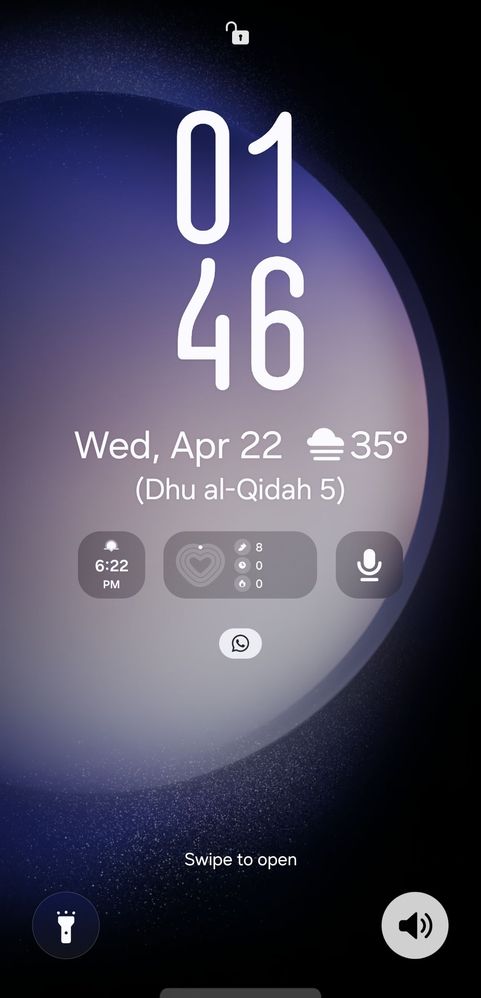
Only the notification icon is seen and upon clicking it shows the notification tray.
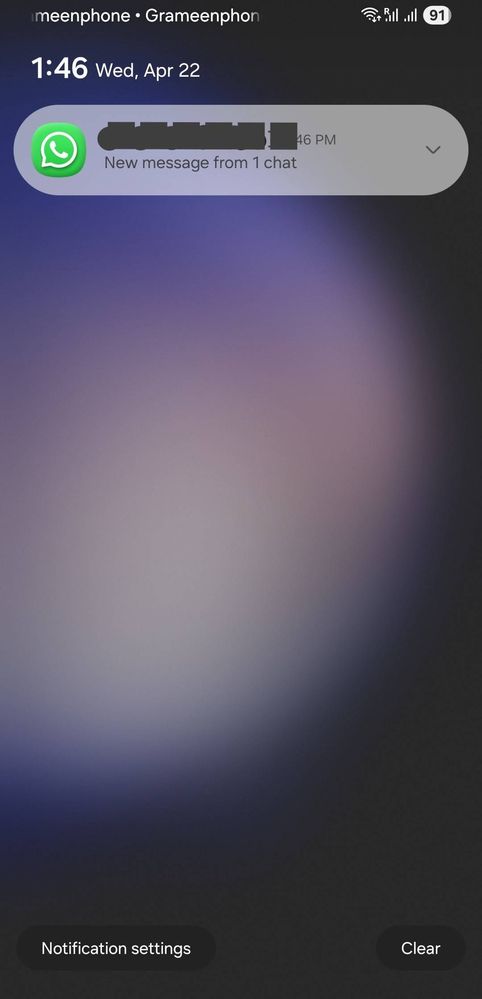
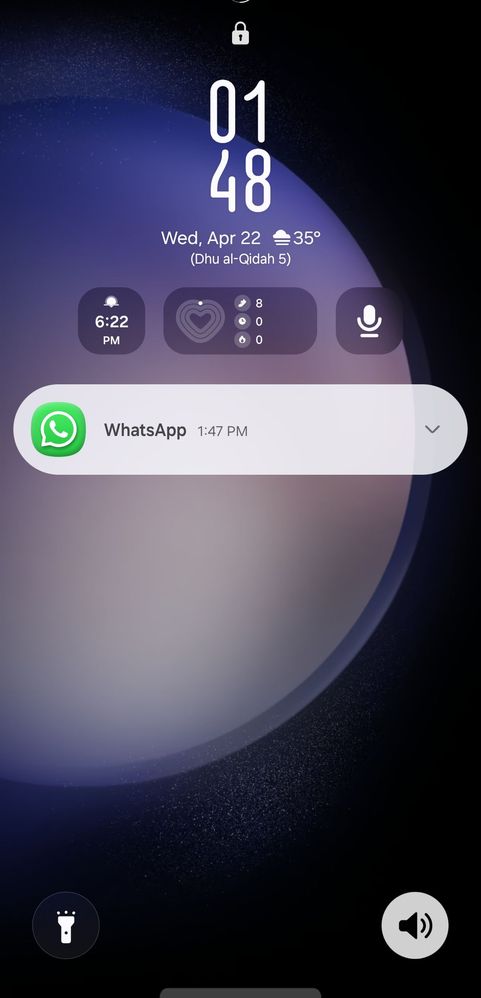
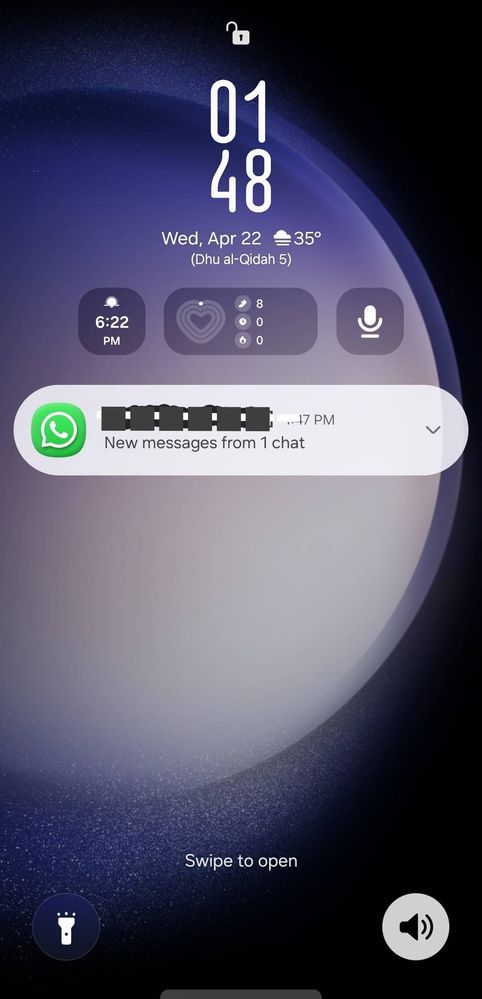
This card is unavailable when using lockstar and notification shows here in itself upon unlock.
R1zwan2
Active Level 1
7 months ago
in
0 likes
Arun_G
Active Level 7
7 months ago
in
In 3rd screenshot, the phone is locked and the contents in WhatsApp is hidden.
But after unlocking, it shows contents (in screenshot 4)
When you hold your phone, the face lock quickly detects your face and unlocks your phone, so you're seeing the contents.
Basically it's working fine.
If you like please accept it as a solution it'll help other users also. Click 3 dots on my reply and accept it as solution.
Thanks
0 likes
R1zwan2
Active Level 1
7 months ago
in
0 likes
R1zwan2
Active Level 1
7 months ago
in
0 likes
ANIRUDDHAADHIKARY
Expert Level 5
7 months ago
in
0 likes
R1zwan2
Active Level 1
7 months ago
in
If you have managed to make it work, please share methods
0 likes
R1zwan2
Active Level 1
7 months ago
in
This notification tray Appears ONLY WHEN THE CLOCK SIZE is small, if the size is increased to a threshold, the tray disappears and only the icon remains. But if the clock size is decent or below threshold size, the tray is shown.
Thank You Everyone who took their time even for a little bit.
0 likes
cs_member10
Moderator
7 months ago
in
Dear Samsung Member,
Greetings from Samsung Customer Support!
We appreciate you taking the time to share valuable comments and taking your valuable feedback. We are continuously working to make our products better and more efficient.
Kindly share the log file regarding issues. Also, share video clips and images for better understanding. This will help us to further investigate and resolve your issue.
To share the log file: Open Samsung Members Application > Support> Tap on send feedback> Choose Composer> Select error report> select the appropriate issue category> Type your query and send.
Note: To ensure relevant log information is included in the error report, submit the report within 3 minutes of encountering the bug or error, and do not terminate (swipe away) the Samsung Members application until you are notified that the report has been sent. This can take up to 5 minutes.
Warm Regards,
Samsung Customer Support
0 likes