
I’m facing a very specific and frustrating issue with my Galaxy S24 5G camera performance, particularly related to photo optimization.
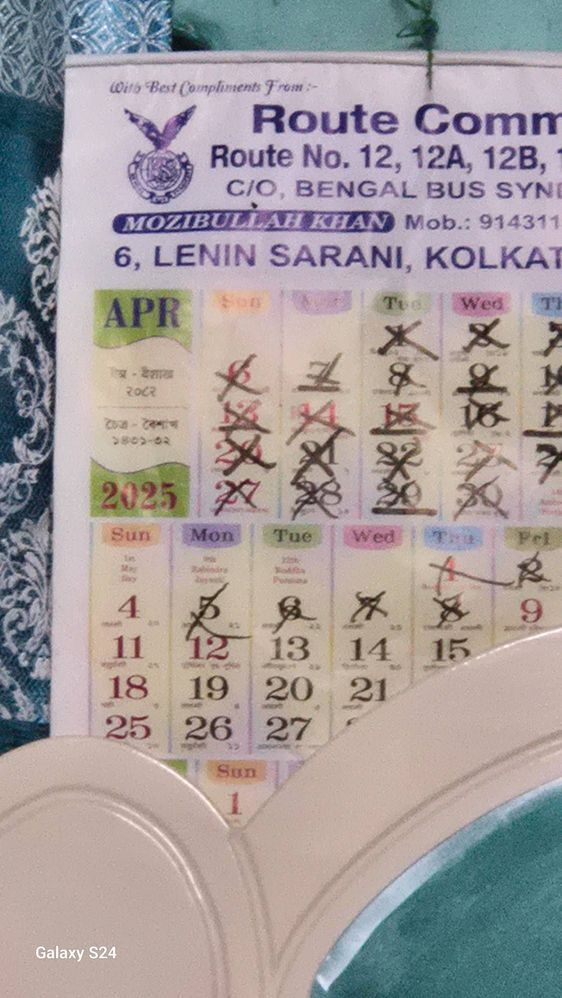
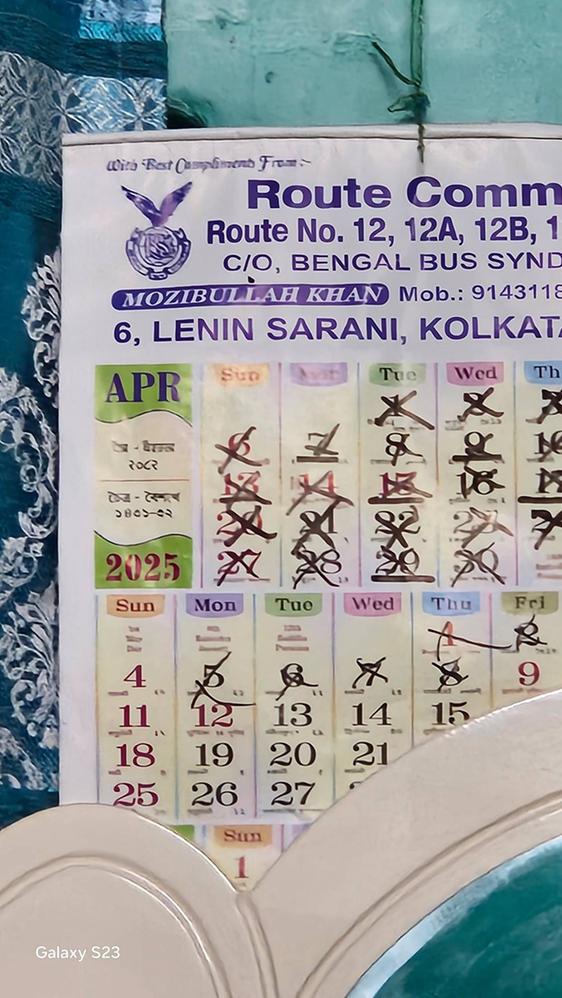
Unlike previous models like the S20 FE 5G and S23 5G, which improve image quality after optimization, the S24 5G does the opposite. Even when Scene Optimization is ON, the camera fails to enhance photos. In fact, after optimization, the image becomes noticeably worse — blurry, dull, and lacking detail, especially in challenging or zoomed-in shots like Moon photography.
I’ve tried multiple times with optimization ON and OFF, but the result is either the same or sometimes even worse when optimization is enabled. This makes me feel like optimization is either broken or poorly implemented in the S24 5G software.
I would like to know:
1. Is this a known issue with the Galaxy S24 5G?
2. Is it happening on all S24 units or just specific ones?
3. Is there any permanent solution or upcoming update planned to fix this camera behavior?
It's quite disappointing that the flagship S24 5G underperforms in areas where older or slightly lower-tier models do better. As a dedicated Samsung customer, I expect consistency and improvement, not degradation.
Please escalate this to the appropriate development team and let me know if there’s any fix coming or if I need to visit a service center.
cs_member10
Moderator
07-12-2025 07:13 AM
in
Dear Samsung Member,
Greetings from Samsung Customer Support!
We regret to hear about your experience with our product. Please believe that this is not a usual occurrence.
Please perform the below-mentioned troubleshooting steps, these may help in resolving your concern.
1. Check the physical condition of your camera lens, such as broken camera lens or scratchy camera lens.
2. Camera lens cleaning: Use a microfiber cloth or a cleaning wipe. Gently remove the fingerprints, dirt, and dust from the camera lens.
Note: Please check there is no laminated or tempered glass pasted on camera.
3. Reset camera settings: Go to Camera > Settings > Scroll up and tap on Reset settings > Reset.
4.Update software: Go to Settings > Software update > Download and install > Checking for software update > Software update available > Tap on Download > Downloading updates > Tap on Install now.
Note: Your phone will restart after the update is installed.
5.If the issue is still not been resolved, Reset the device:
IMPORTANT:
•Kindly create data backup of your device via SMART switch mobile application or http://www.samsung.com/in/support/smartswitch pc suite.
•Remember google password before resetting the device because it is required during initial setup.
•If you do not remember password, then reset, (Forgot password) your google account.
•For this:
•Open Gmail (https://accounts.google.com/servicelogin) > forgot password >Select "try another way" > Next > Enter a new password > Next
Please follow the below steps to reset the device: Settings > General Management > Reset > Temporary cloud backup or External storage backup > tap on Factory data reset (This will erase all data, including files and downloaded apps)
If the issue still persists, after performing all troubleshooting steps, would request you to please visit the service center. Below is the link to find nearest service center
http://www.samsung.com/in/support/servicelocation/
Warm Regards,
Samsung Customer Support
0 likes