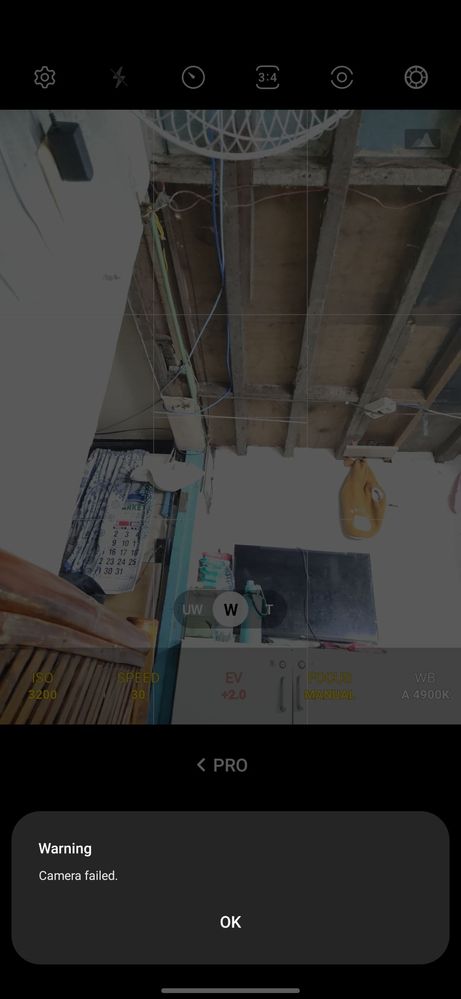
Anyone encountering this issue when using Samsung Camera App in Pro Mode. I encountered this issue for a couple of weeks already when using this Pro Mode with this configuration in camera.
We are sorry to hear about your experience with your Samsung Galaxy S22+ having issues with the camera app when using the Pro Mode, and we apologize for the inconvenience it caused you.
If I encounter the same warning message, "Camera failed", I will get worried too. But don't fret; we are here to guide, assist, and offer solutions to restore your device's camera app to optimum performance.
Before you try out the recommendations below, be sure to check ifyour device's software and related apps are updated to the latest version. To update your mobile device's software, follow these steps:
Step 1.Go toSettings> Software update.
Step 2.Tap on Download and install.
Step 3.Follow the on-screen instructions.
Step 4.Restart your device.
Clear Camera App Cache.
Open Settings, and then swipe to and tap Camera Apps. Tap Storage, and then tap Clear cache.
Clear Camera App Data.
Open Settings, and then swipe to and tap Camera Apps. Tap Storage, tap Clear data, and then tap OK. This will completely wipe the app and reset it to the original settings.
If that doesn't fix the problem, you may submit an error report through Samsung Members app as follows:
Step 1.Long press Samsung Members icon on Apps screen and tap Error reports.
Step 2. Tap OK on agreement popup to send system log data.
If the problem persists, immediately bring your device to the nearest Samsung Authorized Service Center. Rest assured that our Samsung engineers and technicians are competent to assess your device with suggestions, and offer to provide prompt solutions to restore it up to optimum performance.

butete
Expert Level 5
Friday, March 24th, 2023 11:23 PM
in
0 likes
TeamGalaxyRene
Moderator
Monday, March 27th, 2023 02:40 AM
in
Hello NOSYNNETNEB,
We are sorry to hear about your experience with your Samsung Galaxy S22+ having issues with the camera app when using the Pro Mode, and we apologize for the inconvenience it caused you.
If I encounter the same warning message, "Camera failed", I will get worried too. But don't fret; we are here to guide, assist, and offer solutions to restore your device's camera app to optimum performance.
If that doesn't fix the problem, you may submit an error report through Samsung Members app as follows:
Step 1. Long press Samsung Members icon on Apps screen and tap Error reports.
Step 2. Tap OK on agreement popup to send system log data.
Step 3. Select Symptom category "Camera".
Step 4. Describe the problem in details and SEND.
How to submit an error report on Samsung Members app? | Samsung PH
If the problem persists, immediately bring your device to the nearest Samsung Authorized Service Center. Rest assured that our Samsung engineers and technicians are competent to assess your device with suggestions, and offer to provide prompt solutions to restore it up to optimum performance.
https://www.samsung.com/ph/support/service-center/
For more assistance and guidance, you may contact us via our online Samsung Customer Care support channels below.
https://samsung-livechat.sprinklr.com/seao/ph/index.html
0 likes
NOSYNNETNEB
Active Level 4
Monday, March 27th, 2023 03:00 AM
in