
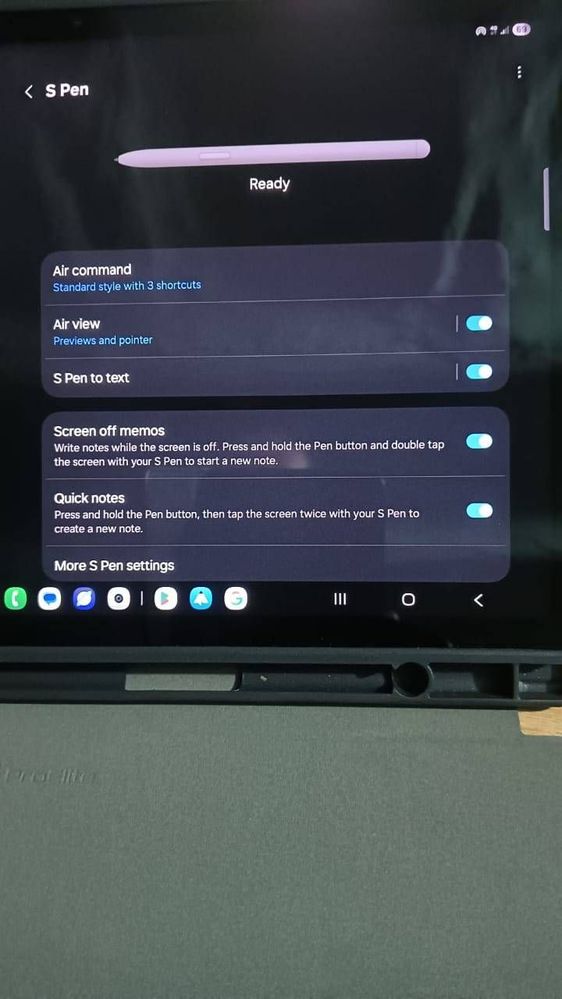
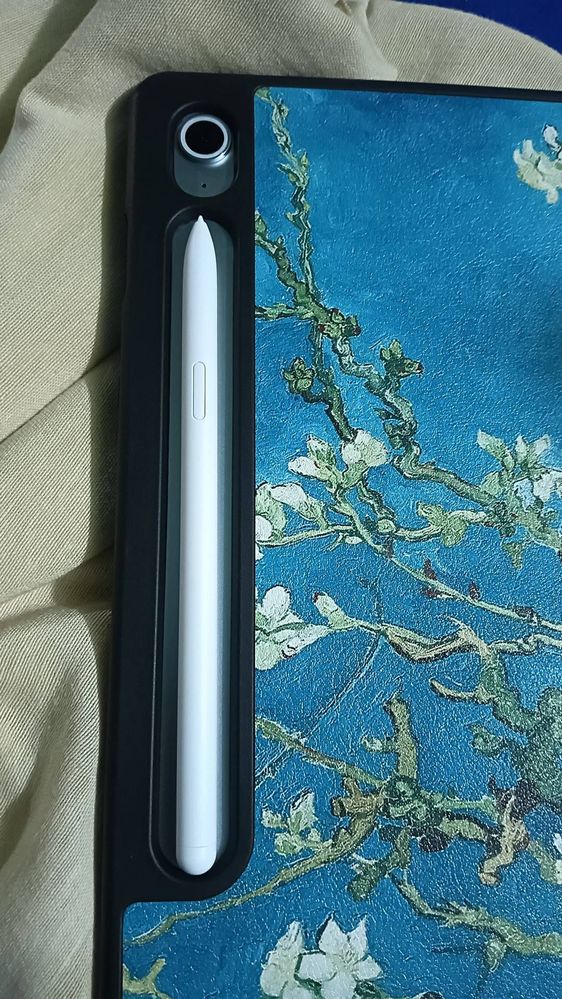
My Spen when placed at the charging spot of my Galaxy Tab S10FE, its not charging, nothing is displayed at the notification, nor green Spen charging icon is shown... when Spens button is pressed no ai function or any response is shown in the tab. KINDLY HELP
AvishekG
Active Level 7
1 year ago
in
The S Pen should be attached to the back of your Tab S10 FE. Unlike earlier models, the Tab S10 FE supports charging in either orientation, so the pen can be placed with the tip facing up or down. Ensure the pen is securely attached and not obstructed by any case or cover. If you're using a third-party case, it might interfere with the charging process. Try removing the case and placing the S Pen directly on the tablet to see if it charges.
---
⚙️ 2. Check S Pen Settings
Navigate to Settings > Advanced features > S Pen. Ensure that Air actions are enabled. If the S Pen is not charging, you might see a notification indicating its status. If the pen is docked but not charging, try resetting the S Pen by tapping the three-dot menu in the S Pen settings and selecting Reset S Pen. After resetting, reattach the S Pen to the tablet.
---
🔋 3. Check Battery Level
Ensure your tablet's battery is sufficiently charged. If the tablet's battery is too low, it may not provide enough power to charge the S Pen. Charge your tablet to at least 50% and then try charging the S Pen again.
---
🧹 4. Inspect for Interference
Remove any magnetic or metal objects near the S Pen, as they can interfere with charging. Ensure that the S Pen is clean and free from debris. If the S Pen tip is damaged or worn out, it may not fit properly into the S Pen slot, causing charging issues. Consider replacing the S Pen if necessary.
---
🔄 5. Restart Your Tablet
A simple restart can resolve many software-related issues. Press and hold the Power and Volume Down buttons simultaneously until the device restarts. After the restart, check if the S Pen charges properly.
---
🛠️ 6. Run Diagnostics
Use the Samsung Members app to run diagnostics on your tablet's battery and charging port. Open the app, go to the Support tab, and select Tablet diagnostics. Choose Battery status and Cable charging to check for any hardware issues.
---
🧩 7. Consider S Pen Compatibility
The S Pen that comes with the Tab S10 FE is not Bluetooth-enabled and does not require charging. If you're using a different S Pen model, such as the S Pen Pro, ensure it's compatible with your tablet. The S Pen Pro requires charging via USB-C and may not charge wirelessly on the Tab S10 FE.
---
If you've tried all these steps and the issue persists, it might be a hardware problem. In that case, I recommend contacting Samsung Support or visiting an authorized service center for further assistance.
0 likes
Anonymous User
Beginner Level 1
1 year ago
in
0 likes
AnshulTKumar
Active Level 6
1 year ago
in
0 likes
Anonymous User
Beginner Level 1
1 year ago
in
0 likes
cs_member10
Moderator
1 year ago
in
Dear Samsung Member,
Greetings from Samsung Customer Support!
We regret to hear about your experience with our product. Please believe that this is not a usual occurrence.
Please perform the below-mentioned troubleshooting steps, these may help in resolving your concern.
If you receive an error that says you need to connect your S Pen to your smartphone or tablet, it could be because the S Pen needs to charge or because it's too far away from your device. Another possibility is that there is magnetic interference with the S Pen.
Note: Make sure to regularly check for updates on your device. S Pen models that do not support Air actions.
1. Check the S Pen's operational range:
1: For Air actions or Remote features to work, the S Pen needs to be within 30 feet of your phone or tablet with nothing in between.
2: If you are far from the phone or tablet and you try to use Air actions (such as opening the Camera with the S Pen), there will be a lag between the button click and the command.
3: If the S Pen is farther than 30 feet away, the connection will be lost. You will need to reconnect the S Pen by inserting it back into the phone or attaching it to the tablet.
4: If the S Pen and device are too far away from each other and disconnect, they will automatically reconnect if they become close again within five minutes.
2. Check after removing and reinserting the S Pen: Remove and reinsert the S Pen to see if it connects to the device. This step only applies if your device has an integrated S Pen.
3. Charge the S Pen: Charging your S Pen will be different depending on what kind of device and S Pen you're using:
1: Phones with an integrated S Pen: Insert the S Pen into your phone to begin charging it.
2: Tablets with an S Pen: Attach the S Pen to the designated charging spot on the back of the tablet. On the Tab S6, the S Pen's tip should face away from the camera. On the Tab S7 and S8, the S Pen's tip should face the camera.
3: Devices with an S Pen Pro: Use a USB-C cable to charge the S Pen whenever its battery is low.
4. Make sure Airplane mode is not enabled. You can use Power saving mode with the S Pen as long as the "Limit apps and Home screen" setting is not turned on. These features automatically disconnect the S Pen's wireless functionality.
5. To communicate with your S Pen, the Air command app must have the permissions for Nearby Devices and Physical activity enabled.
Settings> Apps> Filter and sort> Show system apps to turn it on> OK> Air command> Permissions> Nearby devices> Allow. Do the same for Physical activity.
6. Check your case: If the back of your Galaxy phone or tablet comes into contact with a magnet, the S Pen may not be recognized.
7. Cases made by Samsung may contain magnets, but they have been specifically designed to fit your phone or tablet without interfering with any function, including the S Pen. Verify that your case, or other accessories, are not magnetic.
If any of them are magnetic, remove that accessory and then try reinserting the S Pen.
8. Reset the S Pen: If the error still appears, you can try resetting it. Please be aware that if you customize any of the remote features or other settings, resetting the S Pen will return them to their defaults.
Path Settings> Advanced features> S Pen> Air actions> More> Reset S Pen. Your S Pen will now be reset and you can begin using it again.
9. Update device software (If available): Settings > Software update > Download and install > Checking for software update > Software update available > Download > Downloading updates > Install now.
10. You can reset your device by following the steps from the below link.
https://www.samsung.com/in/support/mobile-devices/samsung-galaxy-mobile-how-to-perform-a-factory-reset/
In case the issue still occurs, please visit the service center for a physical inspection of your device. You can locate your nearest service center with this given link: https://www.samsung.com/in/support/service-center/
Warm Regards,
Samsung Customer Support
0 likes