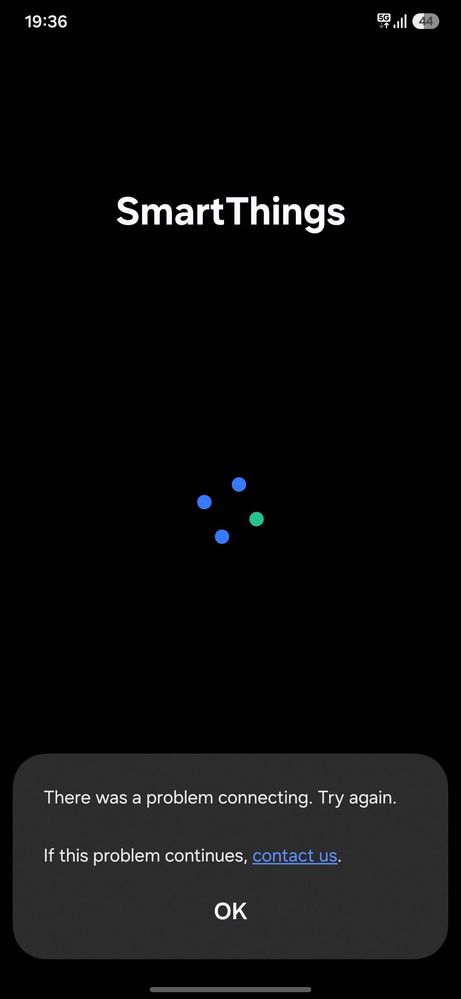
My smart things app is crashing, its not opening. I recently bought a new samsung refrigeratorand thought of connecting it to the app. But its not opening. What could be the reason?? Help me
You can restart and check your internet connection is ok or not for more information visit Samsung care store please click on three dots on right my comment and accept as solution
Note: To delete files or uninstall apps you no longer use, select a category under USER DATA. Then, tick items to select and tap DELETE or UNINSTALL.
● Clear cache memory of a particular application: Settings> Apps> Now pick the app that you like to clear off the cache memory> Storage> Clear Cache.
●Reset the device Settings: Settings > General Management > Reset settings>Reset all settings to their default. Note: kindly contact the particular application helpline once to ensure there is no issue from their end.
● Keep your apps updated: Galaxy Store apps: Open Galaxy Store, tap the Menu (the three horizontal lines), in the upper left corner, and then tap Updates. From here, you can either tap the circling arrow next to individual apps to update one at a time or tap Update All to install all available updates.
● Play Store apps: Open the Play Store, tap, and then tap your profile picture. Tap My apps & games. From here, you can either tap Update next to individual apps or tap Update All to install all available updates.
● If the issue persists, kindly report the problems with a log file. To share a log file, click on the Samsung Members Application (Open Samsung Members Application > Support> Tap on send feedback> Choose Composer> Select error report> select the appropriate issue category> Type your query and send).
Dear Samsung Member, Greetings from Samsung Customer Support! As per your concern, we would request you to kindly perform the following steps: ● Check app Cache: Settings> Device care> Storage> Clean now. Note: To delete files or uninstall apps you no longer use, select a category under USER DATA. Then, tick items to select and tap DELETE or UNINSTALL. ● Clear cache memory of a particular application: Settings> Apps> Now pick the app that you like to clear off the cache memory> Storage> Clear Cache. ●Reset the device Settings: Settings > General Management > Reset settings>Reset all settings to their default. Note: kindly contact the particular application helpline once to ensure there is no issue from their end. ● Keep your apps updated: Galaxy Store apps: Open Galaxy Store, tap the Menu (the three horizontal lines), in the upper left corner, and then tap Updates. From here, you can either tap the circling arrow next to individual apps to update one at a time or tap Update All to install all available updates. ● Play Store apps: Open the Play Store, tap, and then tap your profile picture. Tap My apps & games. From here, you can either tap Update next to individual apps or tap Update All to install all available updates. ● You can check the device in safe mode and for the same mode you can tap on the given link. https://www.samsung.com/in/support/mobile-devices/safe-mode-on-samsung-phones/ ● Update device software (If available): Settings > Software update > Download and install > Checking for software update > Software update available > Download > Downloading updates > Install now. ● You can reset your device by following the steps from the below link. https://www.samsung.com/in/support/mobile-devices/samsung-galaxy-mobile-how-to-perform-a-factory-reset/ ● If the issue persists, kindly report the problems with a log file. To share a log file, click on the Samsung Members Application (Open Samsung Members Application > Support> Tap on send feedback> Choose Composer> Select error report> select the appropriate issue category> Type your query and send). Warm Regards, Samsung Customer Support

sumitkhemnar
Expert Level 5
7 months ago
in
cs_member10
Moderator
7 months ago
in
Dear Samsung Member,
Greetings from Samsung Customer Support!
As per your concern, we would request you to kindly perform the following steps:
● Check app Cache: Settings> Device care> Storage> Clean now.
Note: To delete files or uninstall apps you no longer use, select a category under USER DATA. Then, tick items to select and tap DELETE or UNINSTALL.
● Clear cache memory of a particular application: Settings> Apps> Now pick the app that you like to clear off the cache memory> Storage> Clear Cache.
●Reset the device Settings: Settings > General Management > Reset settings>Reset all settings to their default.
Note: kindly contact the particular application helpline once to ensure there is no issue from their end.
● Keep your apps updated: Galaxy Store apps: Open Galaxy Store, tap the Menu (the three horizontal lines), in the upper left corner, and then tap Updates. From here, you can either tap the circling arrow next to individual apps to update one at a time or tap Update All to install all available updates.
● Play Store apps: Open the Play Store, tap, and then tap your profile picture. Tap My apps & games. From here, you can either tap Update next to individual apps or tap Update All to install all available updates.
● You can check the device in safe mode and for the same mode you can tap on the given link. https://www.samsung.com/in/support/mobile-devices/safe-mode-on-samsung-phones/
● Update device software (If available): Settings > Software update > Download and install > Checking for software update > Software update available > Download > Downloading updates > Install now.
● You can reset your device by following the steps from the below link.
https://www.samsung.com/in/support/mobile-devices/samsung-galaxy-mobile-how-to-perform-a-factory-reset/
● If the issue persists, kindly report the problems with a log file. To share a log file, click on the Samsung Members Application (Open Samsung Members Application > Support> Tap on send feedback> Choose Composer> Select error report> select the appropriate issue category> Type your query and send).
Warm Regards,
Samsung Customer Support
0 likes
kalithanush
Beginner Level 2
6 months ago
in
Greetings from Samsung Customer Support!
As per your concern, we would request you to kindly perform the following steps:
● Check app Cache: Settings> Device care> Storage> Clean now.
Note: To delete files or uninstall apps you no longer use, select a category under USER DATA. Then, tick items to select and tap DELETE or UNINSTALL.
● Clear cache memory of a particular application: Settings> Apps> Now pick the app that you like to clear off the cache memory> Storage> Clear Cache.
●Reset the device Settings: Settings > General Management > Reset settings>Reset all settings to their default.
Note: kindly contact the particular application helpline once to ensure there is no issue from their end.
● Keep your apps updated: Galaxy Store apps: Open Galaxy Store, tap the Menu (the three horizontal lines), in the upper left corner, and then tap Updates. From here, you can either tap the circling arrow next to individual apps to update one at a time or tap Update All to install all available updates.
● Play Store apps: Open the Play Store, tap, and then tap your profile picture. Tap My apps & games. From here, you can either tap Update next to individual apps or tap Update All to install all available updates.
● You can check the device in safe mode and for the same mode you can tap on the given link. https://www.samsung.com/in/support/mobile-devices/safe-mode-on-samsung-phones/
● Update device software (If available): Settings > Software update > Download and install > Checking for software update > Software update available > Download > Downloading updates > Install now.
● You can reset your device by following the steps from the below link.
https://www.samsung.com/in/support/mobile-devices/samsung-galaxy-mobile-how-to-perform-a-factory-reset/
● If the issue persists, kindly report the problems with a log file. To share a log file, click on the Samsung Members Application (Open Samsung Members Application > Support> Tap on send feedback> Choose Composer> Select error report> select the appropriate issue category> Type your query and send).
Warm Regards,
Samsung Customer Support
0 likes