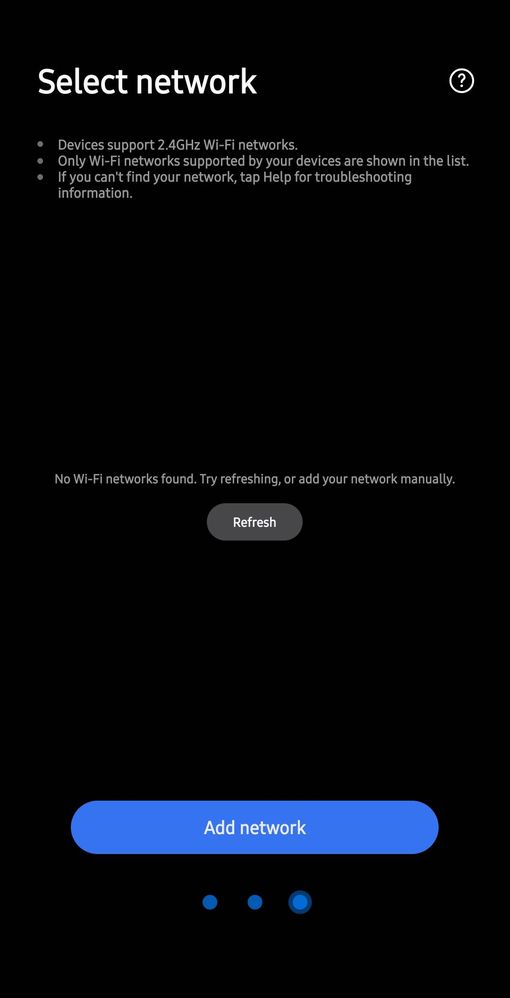
While connecting to samsung air conditioner using smsrt things, it shows as device only shows 2.4ghz. Currently I am using a samsung M35 phone to connect to the air conditioner and shows this error. How to fix the issue.
1. Phone ko Temporary 2.4GHz par laayein: Aapke router mein do band hote hain (2.4GHz aur 5GHz). Apne phone ki Wi-Fi settings mein jayein. Agar aapke router mein dono bands ke alag-alag naam hain (e.g., Home_Wi-Fi aur Home_Wi-Fi_5G), toh 5G wale ko "Forget" kar dein aur normal 2.4GHz wale se connect ho jayein. 2. Router Settings (Band Steering): Agar aapke router ka ek hi naam hai, toh setup ke waqt apne router se thoda door chale jayein (dusre kamre mein). 5GHz ki range kam hoti hai, isliye phone apne aap 2.4GHz par shift ho jayega. Phir setup start karein. 3. Reset AC Wi-Fi: AC ke remote par Timer Off ya Wi-Fi/Smart button ko 5-10 seconds tak dabaye rakhein jab tak AC par "AP" likha hua na aa jaye. Isse AC pairing mode mein aa jayega. 4. SmartThings App Settings: SmartThings App ko update karein. Phone ki Location (GPS) aur Bluetooth ko ON rakhein. Setup ke waqt app ko "Nearby Devices" ki permission zaroor dein. 📢 Important Note: Agar is advice se aapka AC SmartThings se connect ho gaya aur thandak shuru ho gayi, toh please three dots (⋮) par click karke "Accept as Solution" zaroori kar dena! 💙🚀
Thank you for the reply. My wifi is showing the network in the mobile wifi settings. But the same network is not showing in the list of smart things app. It shows as no network as the image I share before.
We regret to hear about your experience with our product. Please believe that this is not a usual occurrence.
To solve the issue, please delete any temporary files that might be stuck in the application and restart it by following the below steps:
Go to the Settings of your phone > Apps/Applications > (Application manager) > Search for SmartThings > Force Stop > Storage > Clear Cache and Clear Data.
Check your network status: make sure the internet is available through the mobile phone internet browser through the Wi-Fi connection.
*Note: If WiFi connection and Internet using WiFi are not available
1. Check your mobile phone's WiFi settings to make sure they are "On" 2. Check WiFi AP Selection in WiFi settings to see if in home (home or office) AP selection is selected for connection. 3. Check WiFi settings (Guide to set up 2.4G, confirm WiFi password, contact your WiFi provider such as KT/SKB/LGU+ etc., and AP manufacturer for internet access using WiFi)
In case the issue persists, please follow the below steps to send an error directly to the developer team of the SmartThings application so they can further investigate this situation.
How to get the log files: SmartThings > Three Lines (Menu) > Contact Us > Error Reports > Check Send system log data > Submit. After following these steps there will be a ticket generated through Samsung Members.

Selected Answer
sumitkhemnar
Expert Level 5
7 months ago
in
Aapke router mein do band hote hain (2.4GHz aur 5GHz).
Apne phone ki Wi-Fi settings mein jayein.
Agar aapke router mein dono bands ke alag-alag naam hain (e.g., Home_Wi-Fi aur Home_Wi-Fi_5G), toh 5G wale ko "Forget" kar dein aur normal 2.4GHz wale se connect ho jayein.
2. Router Settings (Band Steering):
Agar aapke router ka ek hi naam hai, toh setup ke waqt apne router se thoda door chale jayein (dusre kamre mein). 5GHz ki range kam hoti hai, isliye phone apne aap 2.4GHz par shift ho jayega. Phir setup start karein.
3. Reset AC Wi-Fi:
AC ke remote par Timer Off ya Wi-Fi/Smart button ko 5-10 seconds tak dabaye rakhein jab tak AC par "AP" likha hua na aa jaye. Isse AC pairing mode mein aa jayega.
4. SmartThings App Settings:
SmartThings App ko update karein.
Phone ki Location (GPS) aur Bluetooth ko ON rakhein. Setup ke waqt app ko "Nearby Devices" ki permission zaroor dein.
📢 Important Note:
Agar is advice se aapka AC SmartThings se connect ho gaya aur thandak shuru ho gayi, toh please three dots (⋮) par click karke "Accept as Solution" zaroori kar dena! 💙🚀
0 likes
Jomet_K_Cyriac
Active Level 2
7 months ago
in
My wifi is showing the network in the mobile wifi settings. But the same network is not showing in the list of smart things app. It shows as no network as the image I share before.
0 likes
sumitkhemnar
Expert Level 5
7 months ago
in
0 likes
Selected Answer
cs_member10
Moderator
7 months ago
in
Dear Samsung member,
Greetings from Samsung Customer Support!
We regret to hear about your experience with our product. Please believe that this is not a usual occurrence.
To solve the issue, please delete any temporary files that might be stuck in the application and restart it by following the below steps:
Go to the Settings of your phone > Apps/Applications > (Application manager) > Search for SmartThings > Force Stop > Storage > Clear Cache and Clear Data.
Check your network status: make sure the internet is available through the mobile phone internet browser through the Wi-Fi connection.
*Note: If WiFi connection and Internet using WiFi are not available
1. Check your mobile phone's WiFi settings to make sure they are "On"
2. Check WiFi AP Selection in WiFi settings to see if in home (home or office) AP selection is selected for connection.
3. Check WiFi settings (Guide to set up 2.4G, confirm WiFi password, contact your WiFi provider such as KT/SKB/LGU+ etc., and AP manufacturer for internet access using WiFi)
In case the issue persists, please follow the below steps to send an error directly to the developer team of the SmartThings application so they can further investigate this situation.
How to get the log files:
SmartThings > Three Lines (Menu) > Contact Us > Error Reports > Check Send system log data > Submit. After following these steps there will be a ticket generated through Samsung Members.
Warm Regards,
Samsung Customer Support