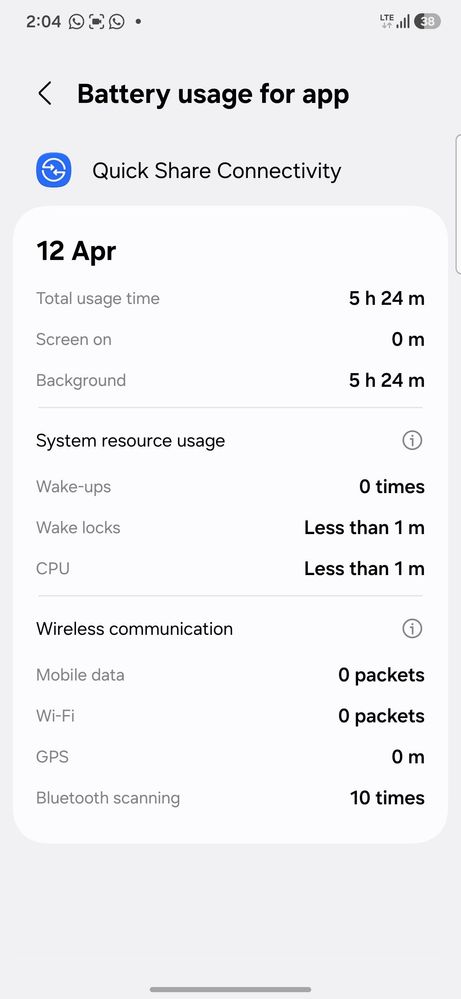
Hello! It can be confusing why Quick Share stays active for hours and drains your battery even when you aren't sharing files. This happens because Samsung has integrated Quick Share into the "Nearby Sharing" ecosystem, which often triggers whenever Bluetooth is active. Here is how to fix it: 1. Change Quick Share Visibility: If your visibility is set to "Everyone," your phone is constantly scanning for nearby devices, which causes the "5h 24m" usage you see. Swipe down the Quick Panel. Long press on Quick Share. Change "Who can share with you" to "No one" or "Contacts only." This stops the background scanning. 2. Disable "Nearby Device Scanning": This is the main culprit that links Bluetooth to background services. Go to Settings > Connections > More connection settings. Turn OFF "Nearby device scanning." * This will stop the phone from constantly looking for other devices to connect with via Bluetooth/Quick Share. 3. Check "Auto-On" Routines: Check if you have accidentally set a Mode or Routine. Go to Settings > Modes and Routines. Check if there is any routine like "If Bluetooth Connected -> Turn on Quick Share." If yes, delete it. 4. Clear Quick Share Cache: If it is stuck in a "high power state": Go to Settings > Apps > Quick Share. Tap Storage > Clear Cache. Restart your phone. 📌 Note: Quick Share uses very little battery if set to "No one." The drain usually happens when the "Scanning" feature is left on. If this stops your battery drain, please click (⋮) and "Accept as Solution". 💙🚀
As per your query, we request you kindly share the log file. Also, share video clips and images for better understanding. This will help us to investigate further and resolve this issue.
Samsung Members Application (Open Samsung Members Application > Support> Tap on send feedback> Choose Composer> Select error report> select the appropriate issue category> Type your query and send.)
Note: To ensure relevant log information is included in the error report, submit the report within 3 minutes of encountering the bug or error, and do not terminate (swipe away) the Samsung Members application until you are notified that the report has been sent. This can take up to 5 minutes.

sumitkhemnar
Expert Level 5
7 months ago
in
1. Change Quick Share Visibility:
If your visibility is set to "Everyone," your phone is constantly scanning for nearby devices, which causes the "5h 24m" usage you see.
Swipe down the Quick Panel.
Long press on Quick Share.
Change "Who can share with you" to "No one" or "Contacts only." This stops the background scanning.
2. Disable "Nearby Device Scanning":
This is the main culprit that links Bluetooth to background services.
Go to Settings > Connections > More connection settings.
Turn OFF "Nearby device scanning." * This will stop the phone from constantly looking for other devices to connect with via Bluetooth/Quick Share.
3. Check "Auto-On" Routines:
Check if you have accidentally set a Mode or Routine.
Go to Settings > Modes and Routines.
Check if there is any routine like "If Bluetooth Connected -> Turn on Quick Share." If yes, delete it.
4. Clear Quick Share Cache:
If it is stuck in a "high power state":
Go to Settings > Apps > Quick Share.
Tap Storage > Clear Cache.
Restart your phone.
📌 Note: Quick Share uses very little battery if set to "No one." The drain usually happens when the "Scanning" feature is left on. If this stops your battery drain, please click (⋮) and "Accept as Solution". 💙🚀
0 likes
KIDNEPAR
Active Level 10
7 months ago
in
0 likes
cs_member10
Moderator
7 months ago
in
Dear Samsung Member,
Greetings from Samsung Customer Support!
As per your query, we request you kindly share the log file. Also, share video clips and images for better understanding. This will help us to investigate further and resolve this issue.
Samsung Members Application (Open Samsung Members Application > Support> Tap on send feedback> Choose Composer> Select error report> select the appropriate issue category> Type your query and send.)
Note: To ensure relevant log information is included in the error report, submit the report within 3 minutes of encountering the bug or error, and do not terminate (swipe away) the Samsung Members application until you are notified that the report has been sent. This can take up to 5 minutes.
Warm Regards,
Samsung Customer Support
0 likes
surajkumar1211
Beginner Level 2
7 months ago
in
Androdro
Beginner Level 2
4 months ago
in
0 likes