Sir you are experiencing heating and lagging during normal usage on yourSamsungGalaxyA37, here are the step-by-step troubleshooting suggestions and settings adjustments .
1. Battery & Performance Tuning Put Unused Apps to Deep Sleep: Go to Settings > Battery > Background usage limits and enable Put unused apps to sleep. Add rarely used apps to Deep sleeping apps so they can't run background processes or consume CPU cycles.
2. Enable Processing Speed Control / Light Performance Mode: Go to Settings > Battery > Processing speed (or Device Care) and set it to Optimized (or Standard). Avoid "High" or "Maximum" modes for everyday tasking, as they cause unnecessary chip heating.
3.Turn Off RAM Plus (Virtual RAM): Go to Settings > Device Care > Memory > RAM Plus and turn it off (or reduce it to the minimum). Virtual memory uses flash storage swapping, which increases wear, generates heat, and often causes UI micro-stutters.
4. Display & System Tweaks Lower Refresh Rate temporarily: Go to Settings > Display > Motion smoothness and test switching from Adaptive (120Hz/90Hz) to Standard (60Hz) to reduce GPU/display driver thermal load.
5.Enable Dark Mode: Go to Settings > Display and switch to Dark Mode to reduce power draw and heat from the display controller.
6. Disable Auto-Brightness / Extra Brightness: Manual level adjustment helps prevent the display backlight from over-driving when thermal throttling starts.
7.Connectivity Features: Turn off Quick Share (Set to No One when not in use), NFC, and Nearby Device Scanning under Settings > Connections > More connection settings to stop background radio polling.
8.Auto-Restart Schedule: Turn on Auto restart under Settings > Device Care > Auto optimization to clear temporary memory leaks periodically.
We regret to hear about your experience with our product. Please believe that this is not a usual occurrence.
Please perform the below-mentioned troubleshooting steps, these may help in resolving your concern.
▶Check space availability
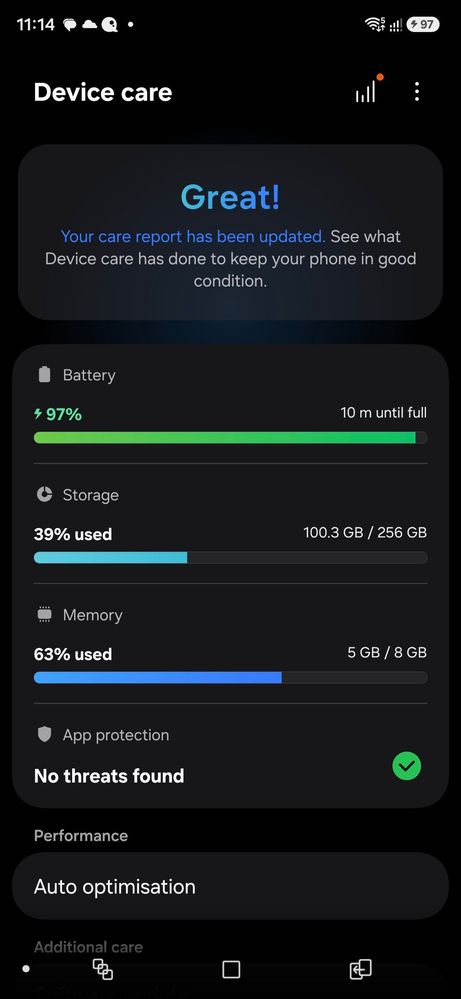
Kindly check the space on your device: Path: Settings > Battery and device Care > Storage To improve the device's performance there should be sufficient space.
Kindly check the RAM in your device: Path: Settings > Battery and device Care > Memory The device's RAM should be free to improve performance. So clear the RAM once a day.
•Check app cache: Please follow the below steps
Clear app cache through Device care: Navigate to the app's screen and tap on Settings > Device Care> Storage > CLEAN NOW.
Note: To delete files or uninstall apps that you do not use anymore, select a category under USER DATA. Then, tick items to select and tap DELETE or UNINSTALL.
The clear cache memory of a particular application:
▶Navigate to the apps screen and tap on Settings > Apps > Now pick the app that you like to clear off the cache memory > Storage >Clear Cache.
•Close Background Apps
Too many applications running in the background may cause the device to hang. Kindly close the background running applications in the device (''Tap the left side key & close the background running application'').
If the still issue persists please do some overheating steps:
▶ Turn off Wi-Fi, GPS, Bluetooth, and other connectivity features when not using them.
▶Decrease the screen brightness; If your device is heating, decrease the screen brightness sometimes high brightness level may cause the heating issue.
▶ Close background running apps: When running multiple applications, the processor processes more tasks and as a result, additional heat is released from the device. This happens with most electronic devices (even computers/laptops), including the devices of other manufacturers. Close all applications, not in use.
▶Uninstall the unnecessary apps: Too many apps installed on the device may cause the device heating issue. Uninstall the unnecessary apps if not using them.
▶Long duration of graphics-intensive gaming sessions: The long duration of graphics-intensive gaming sessions may cause a heating issue.
▶ Usage of the mobile phone when charging: Usage of the mobile phone when charging may cause a heating issue. So, we recommend you avoid the usage of your mobile phone while charging
•Remove third-party application Kindly uninstall that application by following the below steps and check once as the issue might occur due to third-party applications. ▶ Navigate to Settings ▶ Tap on Apps ▶ Select the third-party application from Apps. ▶ Tap on Uninstall Remove memory card
Due to some ''unauthorized'' files in the memory card device performance will be slow, so if you are using the memory card in your device. I will advise you to safely remove it from your device. For this follow the below steps: Step 1: Before removing the memory card, first, unmount it for safe removal. On the Home screen, tap Apps > Settings > Device maintenance > Storage > More option > Storage settings > SD card > Unmount.
Insert the ejection pin into the hole on the tray to loosen the tray Note: Ensure that the ejection pin is perpendicular to the hole. Otherwise, the device may be damaged. ▶ Pull out the tray gently from the tray slot. ▶ Remove the memory card. ▶ Insert the tray back into the tray slot* Note: Please ensure that the memory card is not removed while the device is transferring or accessing information. Doing so can cause data to be lost or corrupted or damage the memory card or device. Samsung is not responsible for losses that result from the misuse of damaged memory cards, including the loss of data. Remove third-party accessories
Due to ''3rd Party'' (Not provided by Samsung) Accessories, (Like a charger, USB Cable'' etc.) device might also hang. So kindly avoid the usage of these 3rd party accessories.
• Disable power saving mode
''Power saving mode'' limits the performance of the device. So we recommend disabling the Power Saving mode in your device.
. Update software: Go to Settings > Software update > Download and install > Checking for software update > Software update available > Tap on Download > Downloading updates > Tap on Install now. Note: Your phone will restart after the update is installed.
. If the issue is still not been resolved, Reset the device: IMPORTANT: • Kindly create data backup of your device via SMART switch mobile application or http://www.samsung.com/in/support/smartswitch pc suite. • Remember google password before resetting the device because it is required during initial setup. • If you do not remember it, then reset, (Forgot password) your google account. • For this: • Open Gmail (https://accounts.google.com/servicelogin) > forgot password >Select ""try another way"" > Next > Enter a new password > Next.
Please follow the below steps to reset the device: Settings > General Management > Reset > Temporary cloud backup or External storage backup > tap on Factory data reset (This will erase all data, including files and downloaded apps)
If the issue still persists, after performing all troubleshooting steps, would request you to please visit the service center. Below is the link to find nearest service center http://www.samsung.com/in/support/servicelocation/

IamSamsungGuy
Active Level 7
2 months ago
in
1. Battery & Performance Tuning
Put Unused Apps to Deep Sleep:
Go to Settings > Battery > Background usage limits and enable Put unused apps to sleep. Add rarely used apps to Deep sleeping apps so they can't run background processes or consume CPU cycles.
2. Enable Processing Speed Control / Light Performance Mode:
Go to Settings > Battery > Processing speed (or Device Care) and set it to Optimized (or Standard). Avoid "High" or "Maximum" modes for everyday tasking, as they cause unnecessary chip heating.
3.Turn Off RAM Plus (Virtual RAM):
Go to Settings > Device Care > Memory > RAM Plus and turn it off (or reduce it to the minimum). Virtual memory uses flash storage swapping, which increases wear, generates heat, and often causes UI micro-stutters.
4. Display & System Tweaks Lower Refresh Rate temporarily:
Go to Settings > Display > Motion smoothness and test switching from Adaptive (120Hz/90Hz) to Standard (60Hz) to reduce GPU/display driver thermal load.
5.Enable Dark Mode:
Go to Settings > Display and switch to Dark Mode to reduce power draw and heat from the display controller.
6. Disable Auto-Brightness / Extra Brightness:
Manual level adjustment helps prevent the display backlight from over-driving when thermal throttling starts.
7.Connectivity Features:
Turn off Quick Share (Set to No One when not in use), NFC, and Nearby Device Scanning under Settings > Connections > More connection settings to stop background radio polling.
8.Auto-Restart Schedule:
Turn on Auto restart under Settings > Device Care > Auto optimization to clear temporary memory leaks periodically.
0 likes
cs_member10
Moderator
2 months ago
in
Dear Samsung Member,
Greetings from Samsung Customer Support!
We regret to hear about your experience with our product. Please believe that this is not a usual occurrence.
Please perform the below-mentioned troubleshooting steps, these may help in resolving your concern.
▶Check space availability
Kindly check the space on your device:
Path: Settings > Battery and device Care > Storage
To improve the device's performance there should be sufficient space.
Kindly check the RAM in your device:
Path: Settings > Battery and device Care > Memory
The device's RAM should be free to improve performance. So clear the RAM once a day.
•Check app cache:
Please follow the below steps
Clear app cache through Device care:
Navigate to the app's screen and tap on Settings > Device Care> Storage > CLEAN NOW.
Note: To delete files or uninstall apps that you do not use anymore, select a category under USER DATA. Then, tick items to select and tap DELETE or UNINSTALL.
The clear cache memory of a particular application:
▶Navigate to the apps screen and tap on Settings > Apps > Now pick the app that you like to clear off the cache memory > Storage >Clear Cache.
•Close Background Apps
Too many applications running in the background may cause the device to hang. Kindly close the background running applications in the device (''Tap the left side key & close the background running application'').
If the still issue persists please do some overheating steps:
▶ Turn off Wi-Fi, GPS, Bluetooth, and other connectivity features when not using them.
▶Decrease the screen brightness; If your device is heating, decrease the screen brightness sometimes high brightness level may cause the heating issue.
▶ Close background running apps: When running multiple applications, the processor processes more tasks and as a result, additional heat is released from the device. This happens with most electronic devices (even computers/laptops), including the devices of other manufacturers. Close all applications, not in use.
▶Uninstall the unnecessary apps: Too many apps installed on the device may cause the device heating issue. Uninstall the unnecessary apps if not using them.
▶Long duration of graphics-intensive gaming sessions: The long duration of graphics-intensive gaming sessions may cause a heating issue.
▶ Usage of the mobile phone when charging: Usage of the mobile phone when charging may cause a heating issue. So, we recommend you avoid the usage of your mobile phone while charging
•Remove third-party application
Kindly uninstall that application by following the below steps and check once as the issue might occur due to third-party applications.
▶ Navigate to Settings
▶ Tap on Apps
▶ Select the third-party application from Apps.
▶ Tap on Uninstall
Remove memory card
Due to some ''unauthorized'' files in the memory card device performance will be slow, so if you are using the memory card in your device. I will advise you to safely remove it from your device. For this follow the below steps:
Step 1: Before removing the memory card, first, unmount it for safe removal.
On the Home screen, tap Apps > Settings > Device maintenance > Storage > More option > Storage settings > SD card > Unmount.
Insert the ejection pin into the hole on the tray to loosen the tray
Note: Ensure that the ejection pin is perpendicular to the hole. Otherwise, the device may be damaged.
▶ Pull out the tray gently from the tray slot.
▶ Remove the memory card.
▶ Insert the tray back into the tray slot*
Note: Please ensure that the memory card is not removed while the device is transferring or accessing information.
Doing so can cause data to be lost or corrupted or damage the memory card or device.
Samsung is not responsible for losses that result from the misuse of damaged memory cards, including the loss of data.
Remove third-party accessories
Due to ''3rd Party'' (Not provided by Samsung) Accessories, (Like a charger, USB Cable'' etc.) device might also hang. So kindly avoid the usage of these 3rd party accessories.
• Disable power saving mode
''Power saving mode'' limits the performance of the device. So we recommend disabling the Power Saving mode in your device.
. Update software: Go to Settings > Software update > Download and install > Checking for software update > Software update available > Tap on Download > Downloading updates > Tap on Install now.
Note: Your phone will restart after the update is installed.
. If the issue is still not been resolved, Reset the device:
IMPORTANT:
• Kindly create data backup of your device via SMART switch mobile application or http://www.samsung.com/in/support/smartswitch pc suite.
• Remember google password before resetting the device because it is required during initial setup.
• If you do not remember it, then reset, (Forgot password) your google account.
• For this:
• Open Gmail (https://accounts.google.com/servicelogin) > forgot password >Select ""try another way"" > Next > Enter a new password > Next.
Please follow the below steps to reset the device:
Settings > General Management > Reset > Temporary cloud backup or External storage backup > tap on Factory data reset (This will erase all data, including files and downloaded apps)
If the issue still persists, after performing all troubleshooting steps, would request you to please visit the service center. Below is the link to find nearest service center
http://www.samsung.com/in/support/servicelocation/
Warm Regards,
Samsung Customer Support
0 likes