
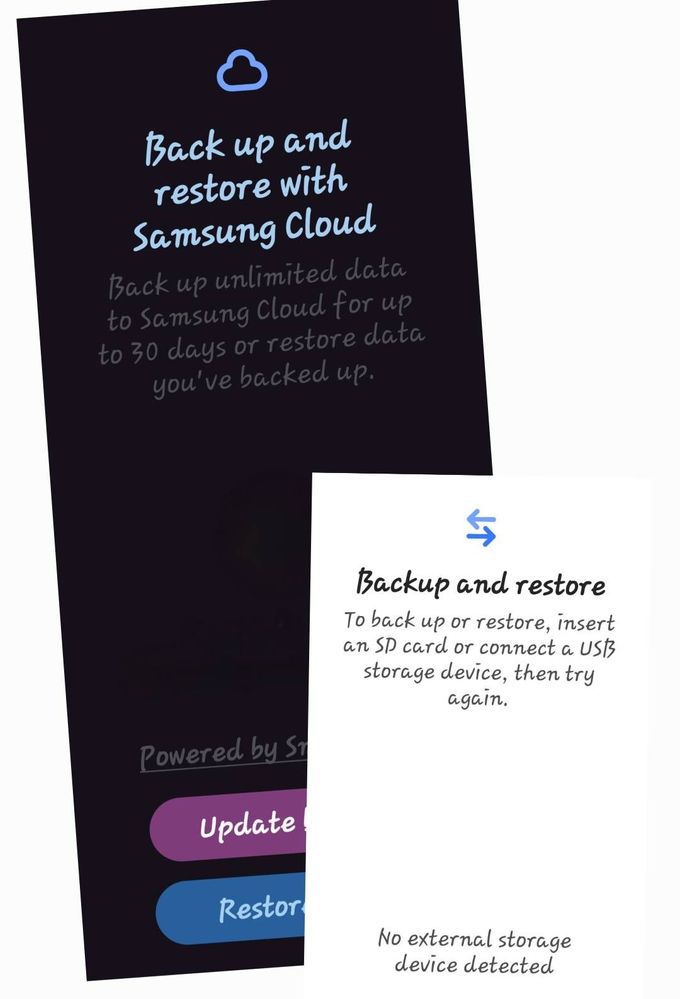
Smart Switch - Cloud Backup offers Galaxy device users unlimited storage for 30 days per backup.
Key Features
1. Unlimited data backup, with individual files up to 100GB.
2. Secure storage restores your device to its exact state in minutes.
3. Backups auto-delete after 30 days, with a 7-day prior notification.
4. Perfect for device upgrades, repairs, or factory resets.
5. Available on Galaxy smartphones and tablets running One UI 6 or later (starting with Galaxy S and Z series).
Compared to Samsung Cloud
Unlike Samsung Cloud’s standard 15GB free storage (limited to native content, excluding third-party apps), Smart Switch provides unlimited storage and supports third-party app data for 30 days.
It also enables comprehensive backups to a Computer, SD card, or a USB drive.
How to Use Smart Switch
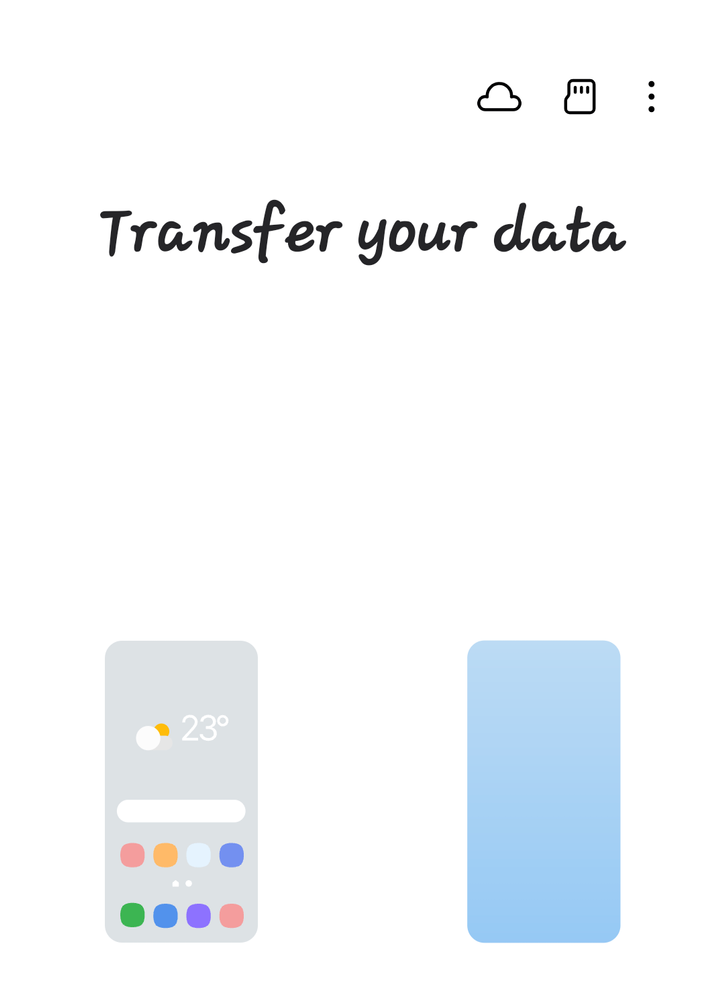
1. Open the Smart Switch app on your Galaxy device.
2. Tap Cloud or External Backup (top-right).
3. Select data to back up and start.
4. To restore, choose the backup location (cloud or external storage).
5. Smart Switch auto-detects the backup file.
6. Select the desired backup (if multiple) and restore.
This efficient process ensures fast, reliable data backup and restoration for Galaxy users.
Key Features
1. Unlimited data backup, with individual files up to 100GB.
2. Secure storage restores your device to its exact state in minutes.
3. Backups auto-delete after 30 days, with a 7-day prior notification.
4. Perfect for device upgrades, repairs, or factory resets.
5. Available on Galaxy smartphones and tablets running One UI 6 or later (starting with Galaxy S and Z series).
Compared to Samsung Cloud
Unlike Samsung Cloud’s standard 15GB free storage (limited to native content, excluding third-party apps), Smart Switch provides unlimited storage and supports third-party app data for 30 days.
It also enables comprehensive backups to a Computer, SD card, or a USB drive.
Smart Switch | Cloud USB Backup
1. Open the Smart Switch app on your Galaxy device.
2. Tap Cloud or External Backup (top-right).
3. Select data to back up and start.
4. To restore, choose the backup location (cloud or external storage).
5. Smart Switch auto-detects the backup file.
6. Select the desired backup (if multiple) and restore.
This efficient process ensures fast, reliable data backup and restoration for Galaxy users.
Smart Switch
Thank you.